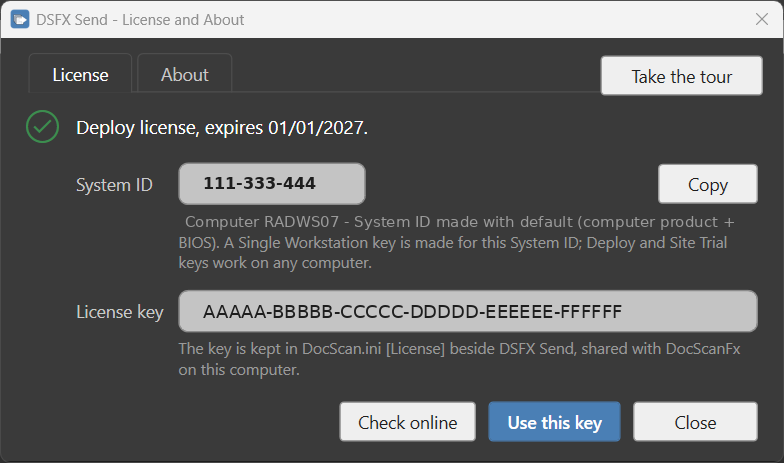
DSFX Send uses the same license as DocScanFx. It reads the key from DocScan.ini (the [License] section) and checks it against this computer’s System ID. There is no separate DSFX Send license to manage.
- DSFX Send runs only with a valid licence that has not expired. This includes Single Workstation keys — unlike DocScanFx, which keeps running on an expired support date, DSFX Send stops when the date passes.
- If there is no valid key when DSFX Send starts, the License window opens and asks for one. The user can type the key PacsLogic supplied, or click Check online to fetch a replacement. DSFX Send opens only once a valid key is in place.
- The System ID shown in that window is the same value DocScanFx shows, so a Single Workstation key ordered for the computer works for both. It has a Copy button for ordering.
- DSFX Send checks online for a replacement key from time to time (at start if the key is missing or expired, and periodically otherwise), exactly as DocScanFx does. A new key is written back into DocScan.ini.
- If the licence nears its end date, DSFX Send shows a reminder on a few days in the run-up. If it ends while DSFX Send is open, the user is told and DSFX Send closes (after any send or burn in progress has finished).
Turning the online license traffic off: the DocScanFx setting [COMMON] NoLicenseCheckForUpdates=True stops the online license check. (It does not affect software updates, which have their own setting — see Software updates.)