DSFX Send can receive an exam onto the workstation and burn it to disc. This is the only situation in which DSFX Send itself receives images. It is entirely optional; sites that only forward exams can ignore this section.
Receiving
- The user sends an exam to the workstation’s own AE title (as any other destination). DSFX Send briefly opens a DICOM listener, only for the duration of that transfer, and closes it again when the exam has arrived.
- Before listening, DSFX Send checks that the port is free and that Windows Defender Firewall will let the PACS in. If a firewall rule is needed, an administrator can create it on the spot (Windows prompts for permission); a standard user is shown the exact rule and the
netshcommands to hand to IT. The default port is 4104. - Received images land in
Resources\DSFX_Send\Received\<date_time>, laid out as DICOM media with a DICOMDIR. Images that were not requested are refused. - Received folders older than a set number of days (7 by default, range 1–7) are deleted automatically the next time any user starts DSFX Send.

Burning
- On the History tab, right-click a received exam and choose Burn this exam to CD/DVD, or select several and burn them together.
- Each disc gets its own DICOMDIR. If the DSFX Media Files folder contains anything (for example a viewer you supplied, see Include a CD viewer), the user is offered the choice to include it on the disc.
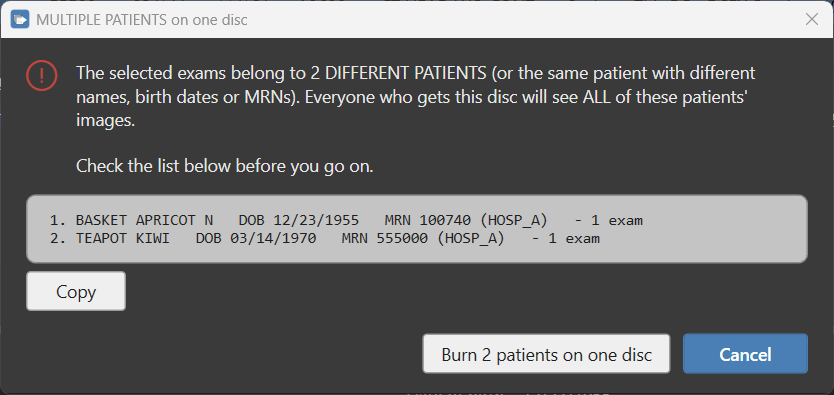
- Multiple patients: if the selected exams belong to more than one patient, DSFX Send shows a clear warning listing each patient, and Cancel is the default — a safeguard against an accidental mixed-patient disc.
- DSFX Send uses Windows’ own disc burning, so no extra software or admin rights are needed. Only one burn runs at a time on a computer. Disc labels carry no patient details.
Settings
The receive port and the keep-days are this computer’s settings, shared by all its users, and live in DocScan.ini under [COMMON] (see Settings in DocScan.ini). They can also be changed from the right-click menu on the Send button.