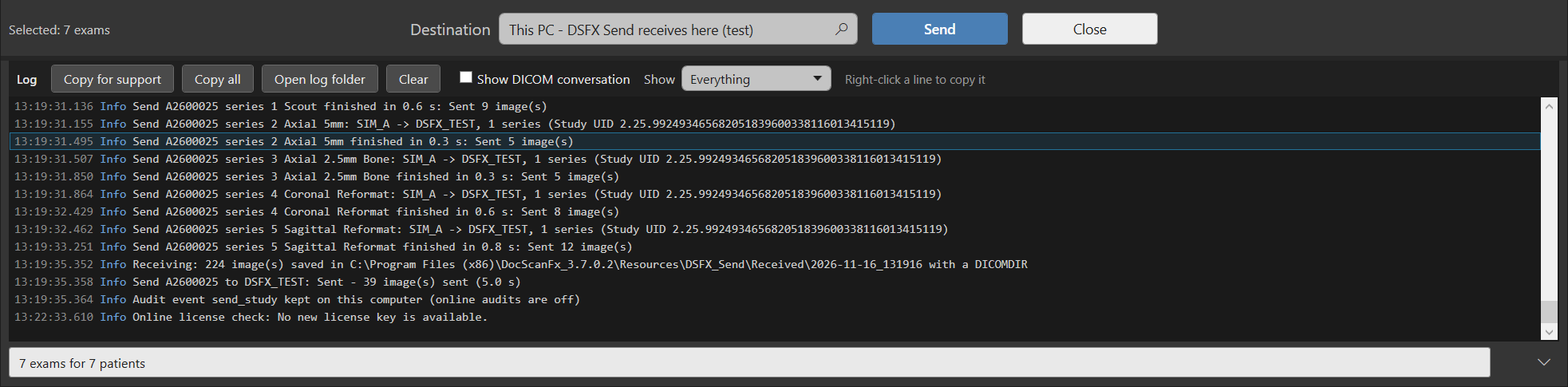
When DSFX Send opens it shows a single window with two tabs — DICOM Send and History — and a thin status bar along the bottom. New users can take a one-minute guided tour (offered on first use, or any time from the About screen).
Search (standalone mode)
A panel of search fields: date range, date of birth, MRN, patient name, study description, accession number and modality. The user fills in any of them and presses Enter to query the PACS. In integrated mode this panel is hidden, because the PACS’s launch action already told DSFX Send which exam to open.

Results and “related exams”
Matching exams appear in a list. Patients expand to their exams, and each exam expands to its series. The user ticks a whole exam, or opens it and ticks only the series they need. Holding Shift while ticking a second box selects everything in between.
Related exams (integrated mode) let the user pull in a patient’s other studies with one click — Same MRN, Same Name + DOB or Same Name — optionally narrowed by a date window and matching modality.
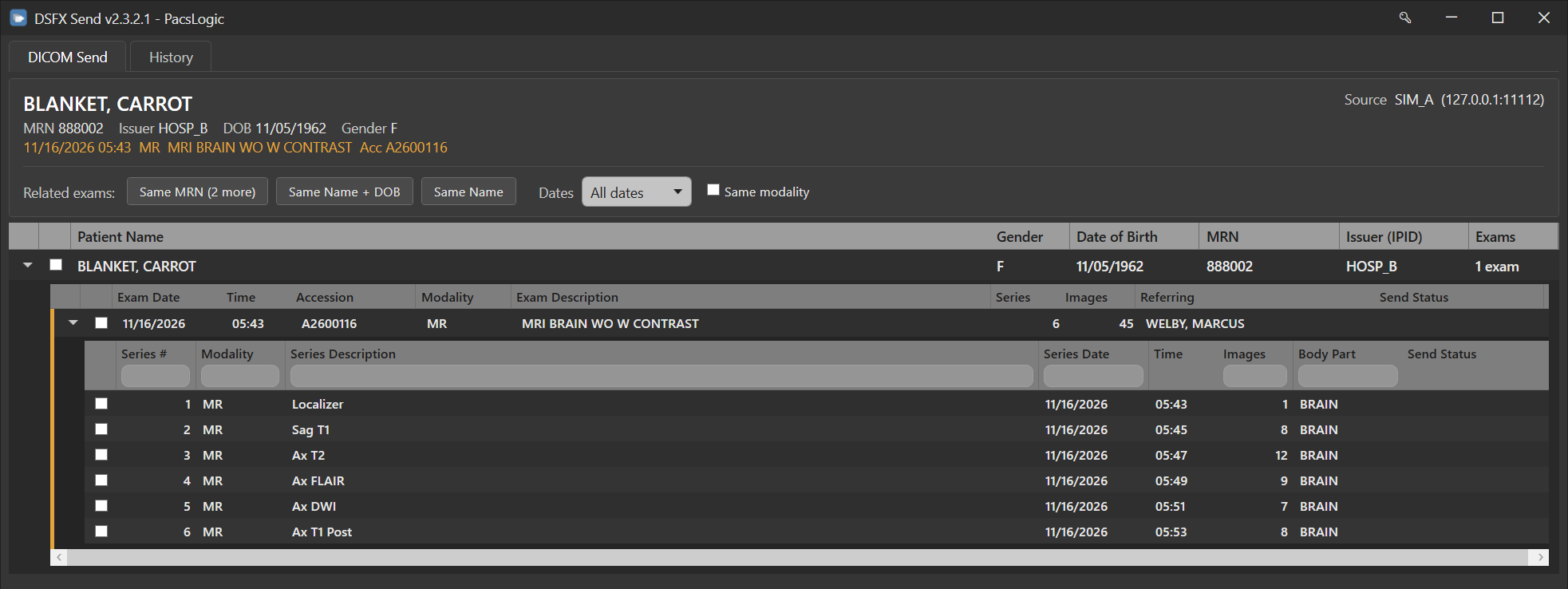
Advanced search (optional, integrated mode). When enabled, an Advanced search button appears at the left of the related-exam buttons. It swaps the simple launch header for the full search fields, pre-filled from the search currently shown, so an experienced user can widen the search or look up a different patient; a Simple search button returns. It is off unless turned on with -AdvancedSearch on the command line or DSFXAllowAdvancedSearch=1 in DocScan.ini [COMMON] (either one enables it). It has no effect in standalone mode, where the full fields are always shown.
Destination
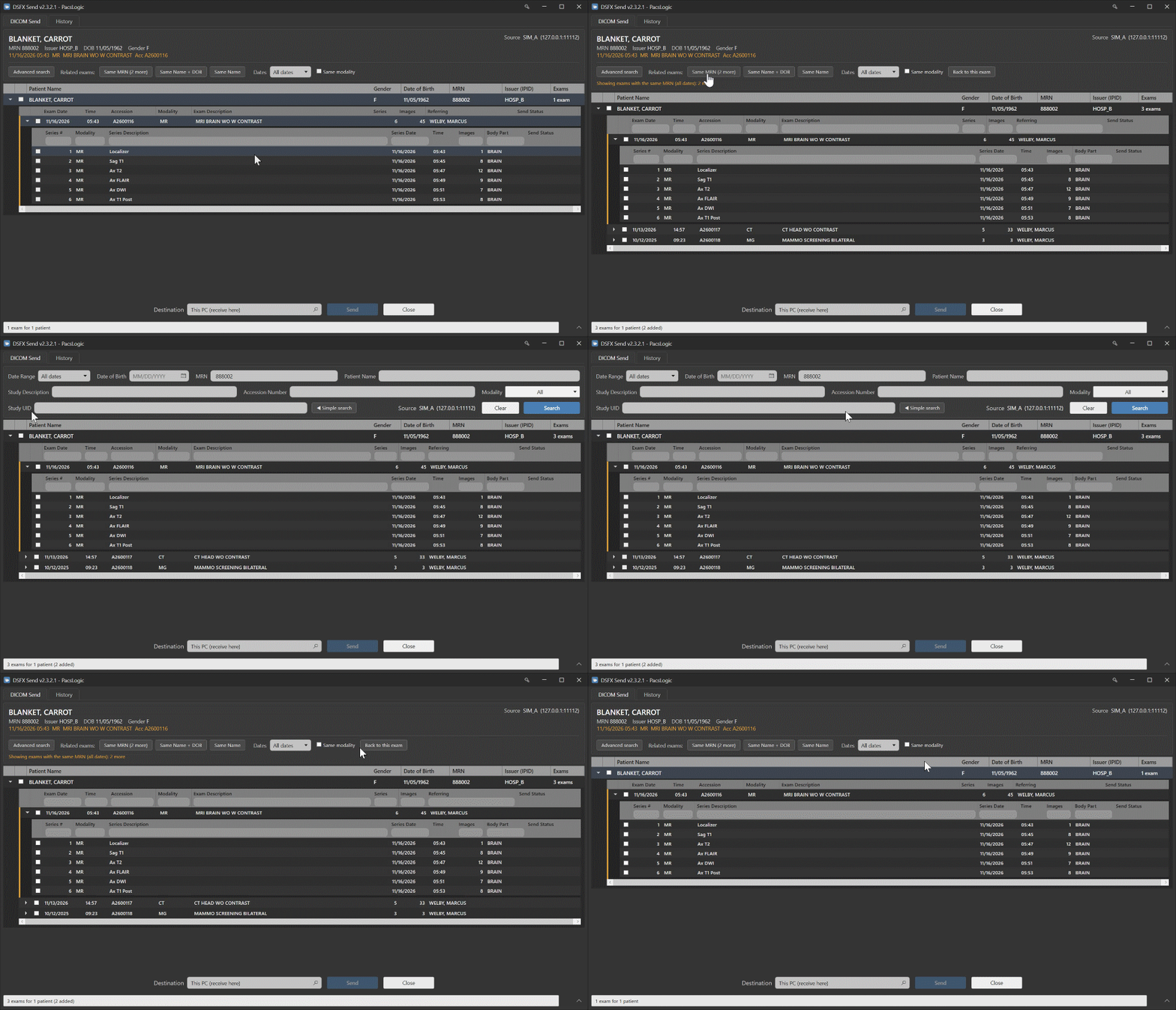
A drop-down of the places the exam can be sent, loaded from the destination list (see The destination list). The user types any part of a name to filter it; their five most recently used destinations sit at the top. Right-clicking the word Destination reloads the list.
Send and the send monitor
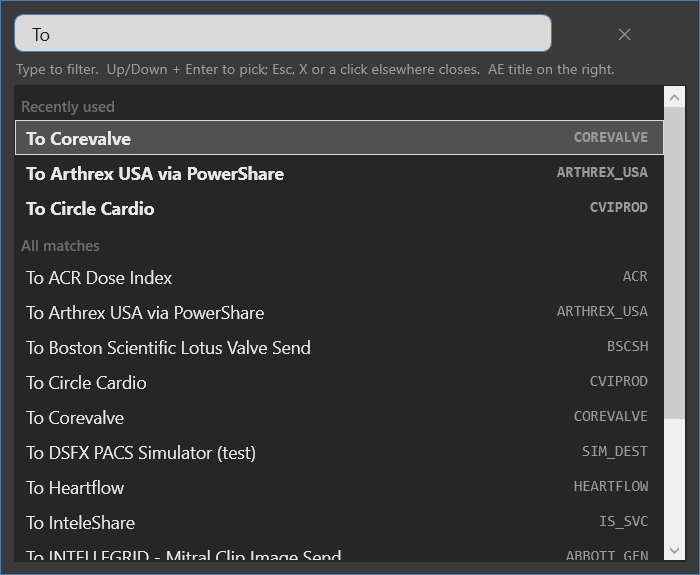
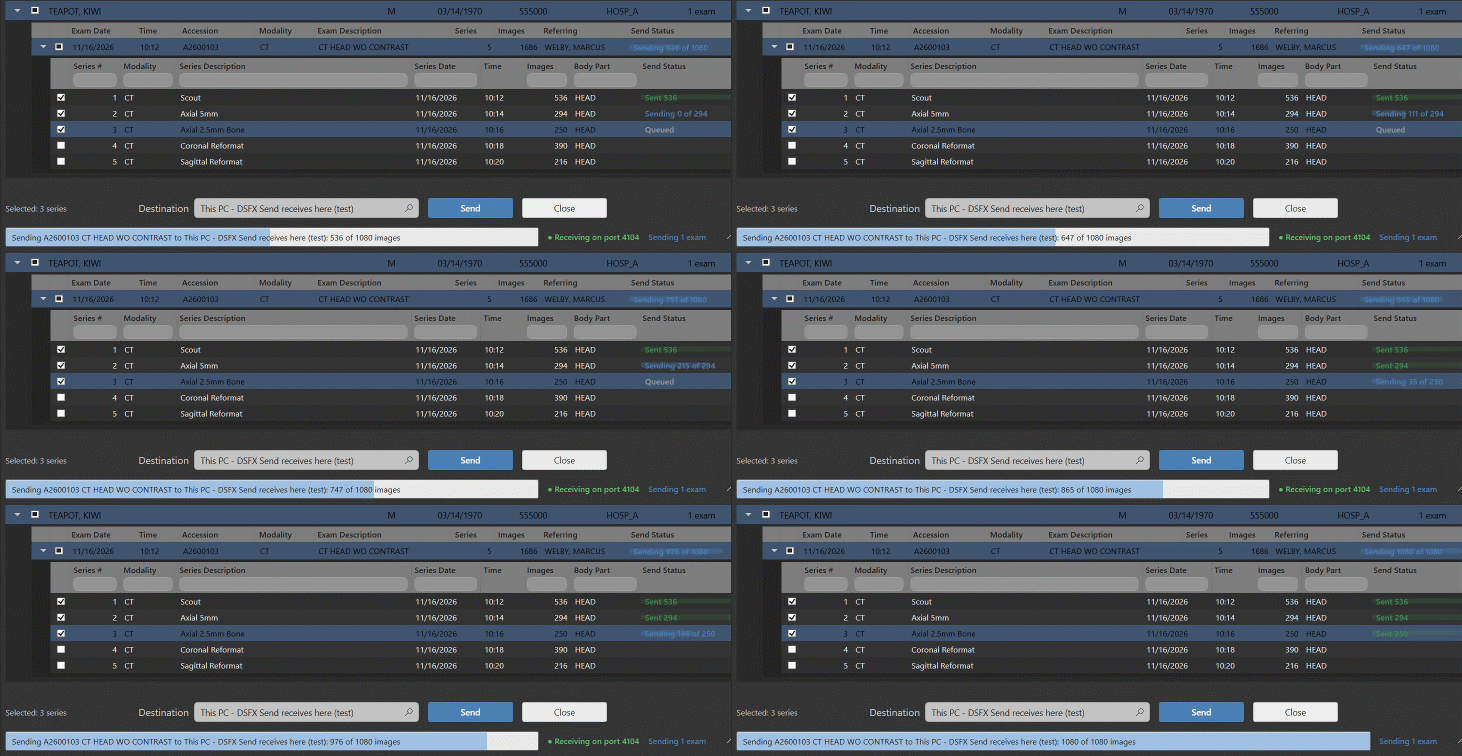
Sends the ticked exams and series. The work goes into a background queue and the window is free again at once, so the user can line up the next exam while earlier ones transfer. Each exam is sent one series at a time, so DSFX Send can report the result of every series. The status cells fill in as the transfer runs — blue while sending, green when finished, red on failure, amber for a partial result.
The send monitor (minimizing while sends run). While sends are in progress, Minimize (and closing the window) shrinks DSFX Send to a small, always-on-top send monitor in the lower-right corner. It shows an overall progress bar and a scrolling list of each study being sent, following the one in progress. When every send finishes it shows a brief “complete” and closes by itself; if any send failed it stays (in red) so the result is not missed. Clicking it reopens the full window; its × asks before stopping sends in progress. In standalone mode with nothing queued, Minimize simply goes to the taskbar as usual.
Immediate send from the PACS (optional). If the launch command passes -SelectedDestination "name" with a single exam, DSFX Send sends that whole study to the named destination at once and opens straight in the send monitor — no clicks — giving the user visual feedback while they carry on in the PACS. If more than one study matches, it opens normally with the destination pre-selected. In standalone mode -SelectedDestination only pre-selects the destination (it does not send on its own). This is the behaviour the auto-route setup uses.
History tab
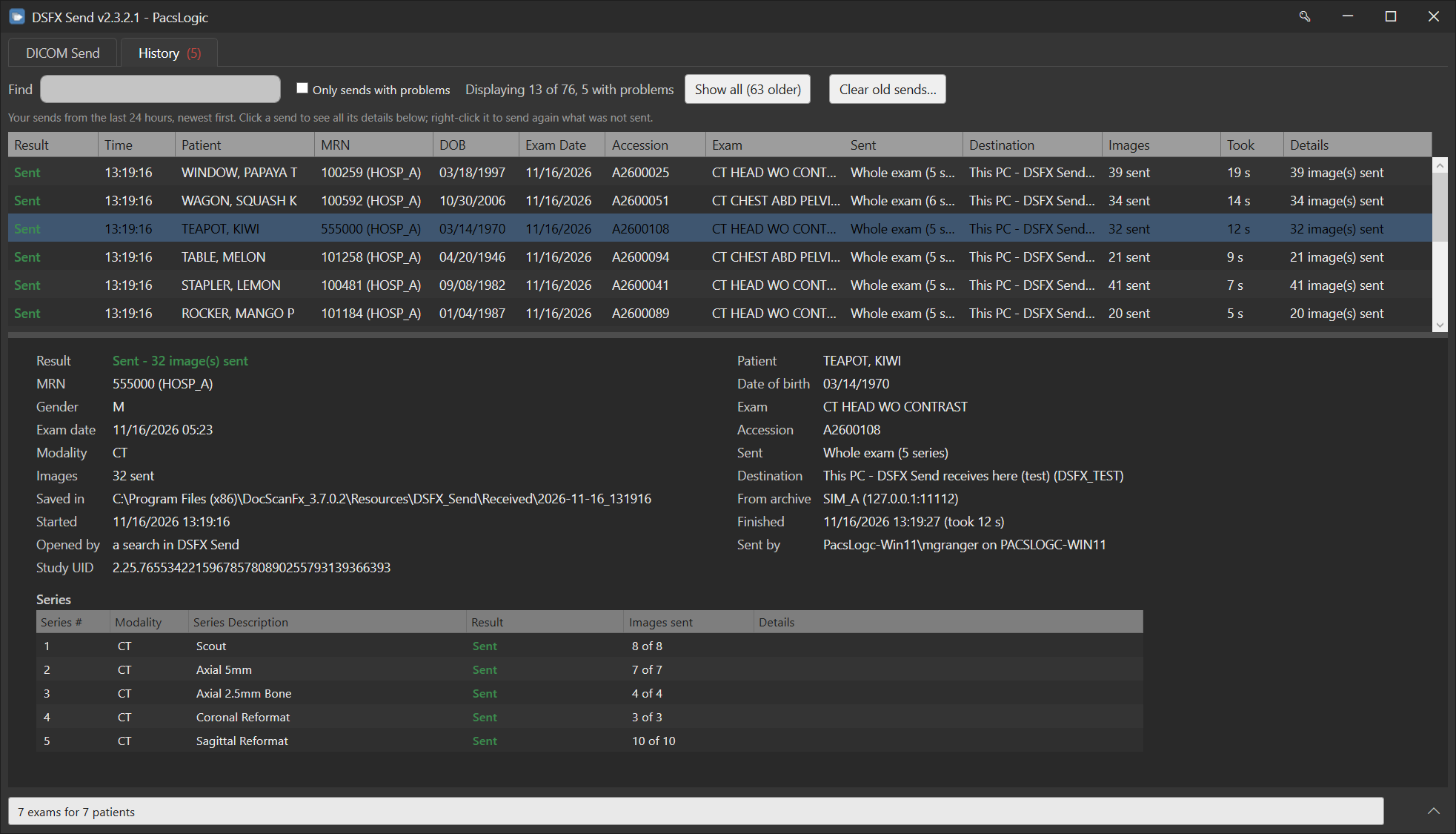
One row per exam per Send click, for the current Windows user only, kept for a configurable number of hours (24 by default). Each row shows the result, time, patient, what was sent (whole exam, or “3 of 7 series”), the destination, how many images succeeded or failed, and the PACS’s own reason for any failure. Clicking a row shows the full detail beneath the list. Right-click offers Send again (only the parts that did not go), cancel, reopen the exam, or copy the details.
Privacy: history is encrypted with each user’s Windows account key and can be read only by that user.
To keep a busy list quick, History shows the last hour by default, with the count reading “Displaying X of Y”; a Show all button reveals every kept send (and flips to Show recent only). A Clear old sends button removes finished sends older than an hour from the list — clearing the list does not delete any received files, which are cleaned on their own schedule.
License and About
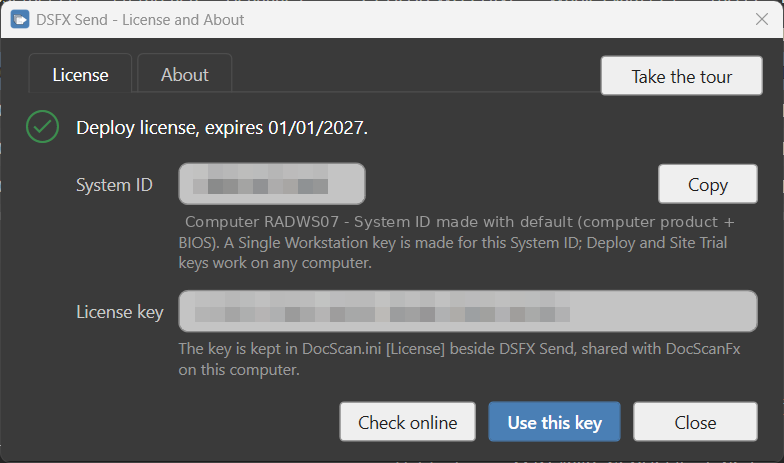
The key icon in the title bar opens a window with two tabs. License shows this computer’s System ID and the license in use, and lets a user enter a new key or check online (see Licensing). About shows the version, PacsLogic and a support link, a Check for updates button (see Software updates) and Take the tour.
Log panel and status bar
The log button at the bottom-right opens a panel showing everything DSFX Send is doing — useful when supporting a workstation. The status bar shows the listener state when receiving, how many audit events are waiting (if enabled), and (after an update) a short “Updated to …” notice. Logs & troubleshooting covers the log in detail.