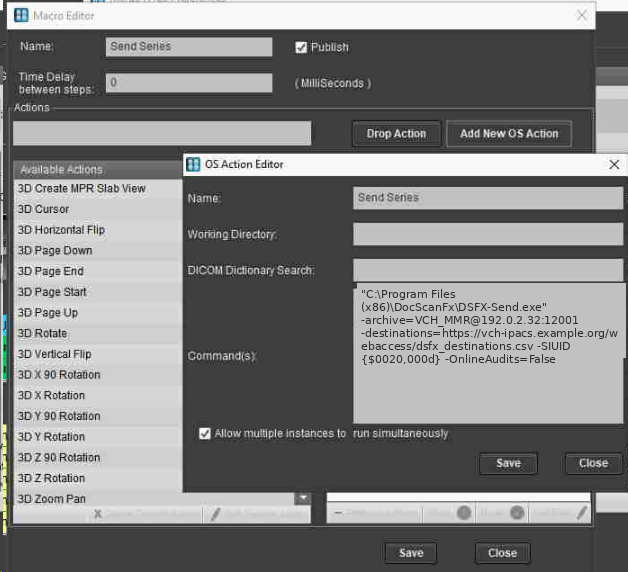
In Merge RPACS, create the macro that launches DSFX Send for the exam the user has open:
Any PACS. This macro is just Merge’s way of launching an external program and handing it the open study. On another PACS, create the equivalent — whatever it calls a launch action, custom tool or hot-key that runs a program with arguments — and pass the same command text below.
- Create a macro named “Send Series”.
- Tick the Publish checkbox.
- Click Add New OS Action and name the custom action “Send Series”.
- Paste the command text (below) into the Command(s) box.
- Tick Allow multiple instances to run simultaneously.
- Adjust the command for your site: set
-DSFXSource(old name-archive) to your PacsSwitch (DTRS) server (or EA) AE title, host and port for your region, and set-DSFXDestinations(old name-destinations) to thedsfx_destinations.csvyou published. If your path toDocScan.exediffers, adjust that too (if it differs across machines, see Mixed install paths).
Command text — example
"C:\Program Files (x86)\DocScanFx\DSFX-Send.exe" -DSFXSource=VCH_MMR@192.0.2.32:12001 -DSFXDestinations=https://vch-ipacs.example.org/webaccess/dsfx_destinations.csv -SIUID {$0020,000d} -DSFXOnlineAudits=False
What the switches do: -DSFXSource (old -archive) is the source the images come from; -DSFXDestinations (old -destinations) is your published CSV; -SIUID {$0020,000d} hands DSFX Send the open study; -DSFXOnlineAudits=False (old -OnlineAudits) is removed once you have PacsSwitch (DTRS) v4 auditing. The full list of switches is in Command-line options.