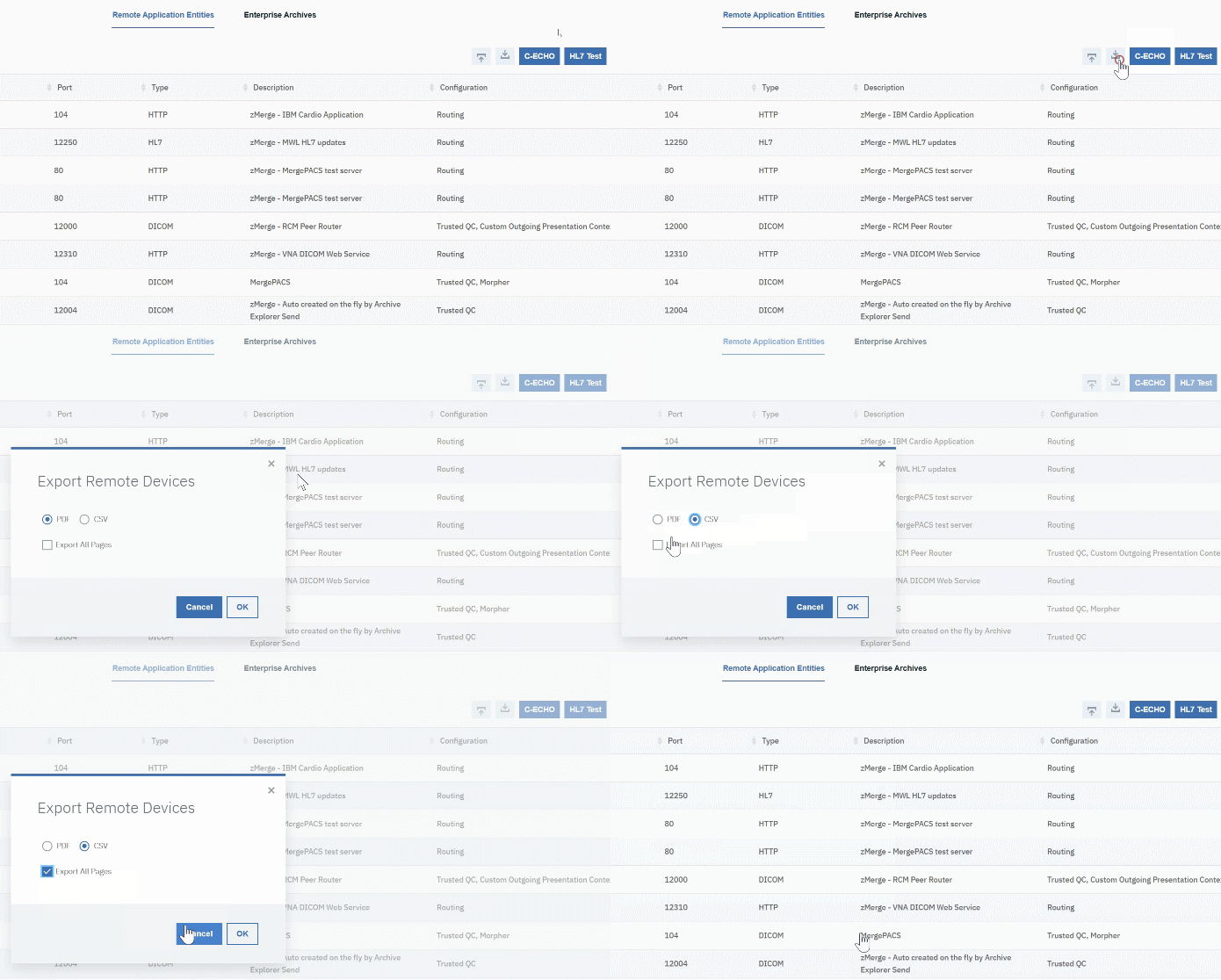
DSFX Send reads its list of “send to” destinations from a CSV file you publish on your MUV server. Build it once from the EA’s remote-device list:
- Log into your Production EA and go to Remote Devices.
- Click the download icon to export the list. Choose CSV and All Pages.
- Open the file in a text or spreadsheet editor and remove any rows you do not want end users to see.
- Leave the layout as it is — do not remove either header row.
- Erase the contents of the IP and port columns, but keep the columns themselves.
- Save / export / download the sheet as a CSV file.
- Put it on your site’s MUV server, named exactly
dsfx_destinations.csv, inE:\WebAccess\WebAccess(the same location as your PacsLaunchsourcesfiles if you use that product).
What DSFX Send reads from the export. The EA export has the columns
AE Title, Host, Port, Type, Description, Configuration — you can leave them exactly as the PACS exports them. DSFX Send takes the AE title and description and automatically leaves out rows that are not DICOM devices or that are worklist entries. The log notes how many were skipped.Keeping it current. This is the file DSFX Send reads for its destination list. If you add devices to the EA Remote Devices later, re-export and re-publish the file (or add the new entry to it by hand). PacsLogic’s PacsSwitch (DTRS) v4 application will provide a better way to manage these in the future.
For the exact file format DSFX Send accepts and the order in which it looks for the list, see The destination list in the reference guide.