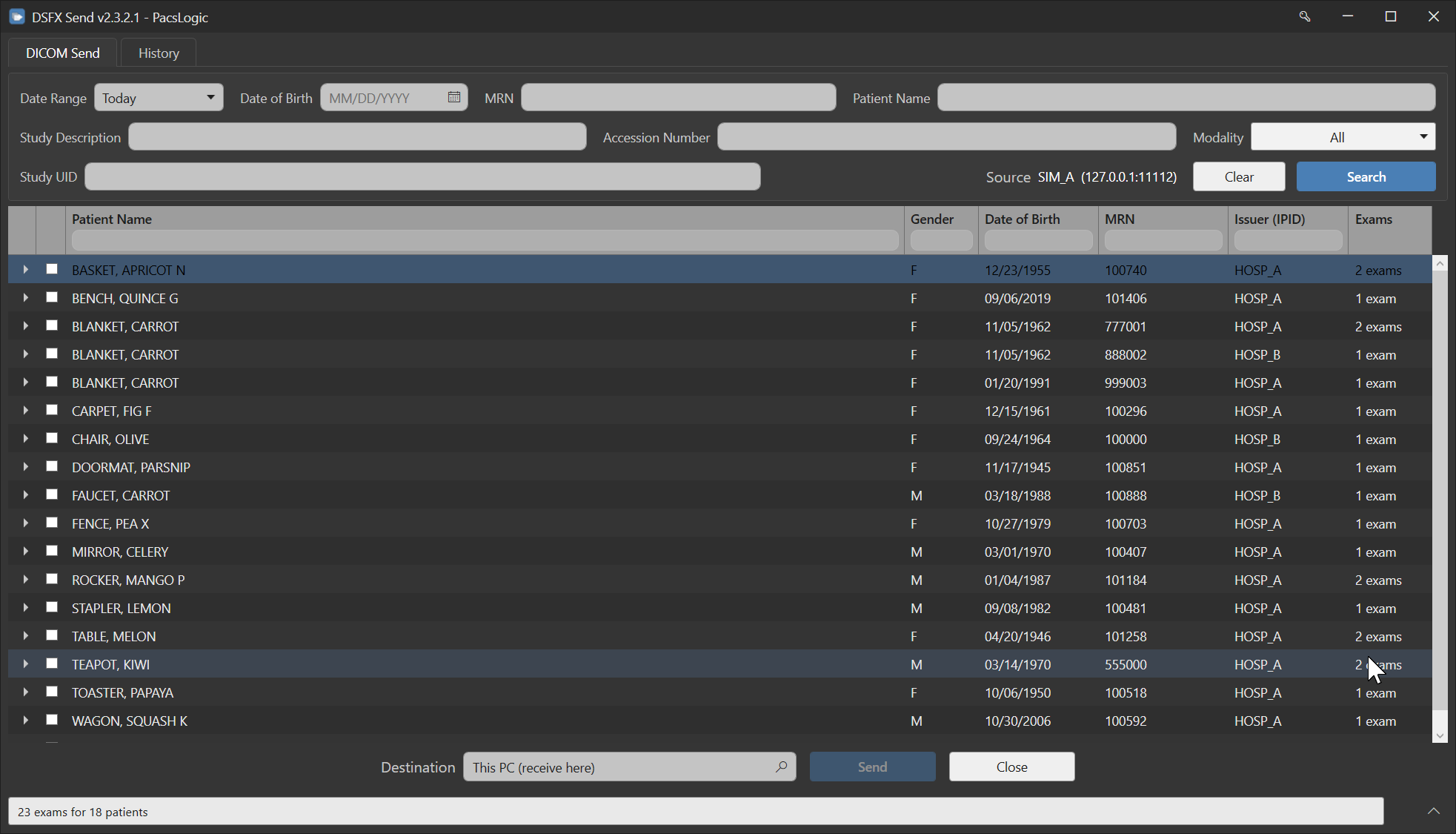
DSFX Send moves medical imaging DICOM exams from your PACS to another DICOM destination. The user searches the archive, picks whole exams or individual series, chooses a destination, and clicks Send. DSFX Send then asks the PACS to transfer those images directly to the chosen destination (a DICOM C-MOVE).
DSFX Send does not receive or store patient images during a normal send. The PACS sends the images straight from itself to the destination; DSFX Send only arranges the transfer and reports the result. (The one exception is the optional “receive to this workstation” feature used for burning CDs — see Receiving & burning.)
Typical uses:
- Send an exam, or just one series of it, from the PACS to another PACS, a CD-burning station, a viewer or an outside facility.
- Pull a patient’s related prior exams and send them together.
- Receive an exam back onto the workstation and burn it to CD or DVD for a patient or referring office.
DSFX Send runs in two ways. Standalone, the user opens it and searches the archive themselves — this works with any DICOM archive. Integrated, the PACS launches it (via a macro, button or action) for the exam currently open, and DSFX Send opens straight to that exam; this works with any PACS that can launch an external application and pass it the study details. Many sites prefer to use integrated mode. Our setup guide is a worked example for Merge RPACS — see Set up with Merge RPACS.
Platform: Windows 10, Windows 11 or Windows Server 2016 and later, 64-bit. No .NET installation or other prerequisite is required — DSFX-Send.exe is a single self-contained program.